Cost change alerts
When a supplier raises or lowers its price, the cost on your purchase order no longer matches the product's cost in Shopify, and your sale price may need to change too. Cost change alerts help you keep track of this:
- On a purchase order, products with a new cost are flagged, together with their current sale price and how your margin changes.
- When you receive products with a new cost, the app adds them to the Cost changes list and notifies you.
- From the Cost changes list, you can update the sale price in Shopify and mark each product as reviewed.
The app never changes a sale price by itself. It only changes one when you click Update price.
Cost change alerts are available on the Professional and Ultimate plans.
Turn on cost change alerts
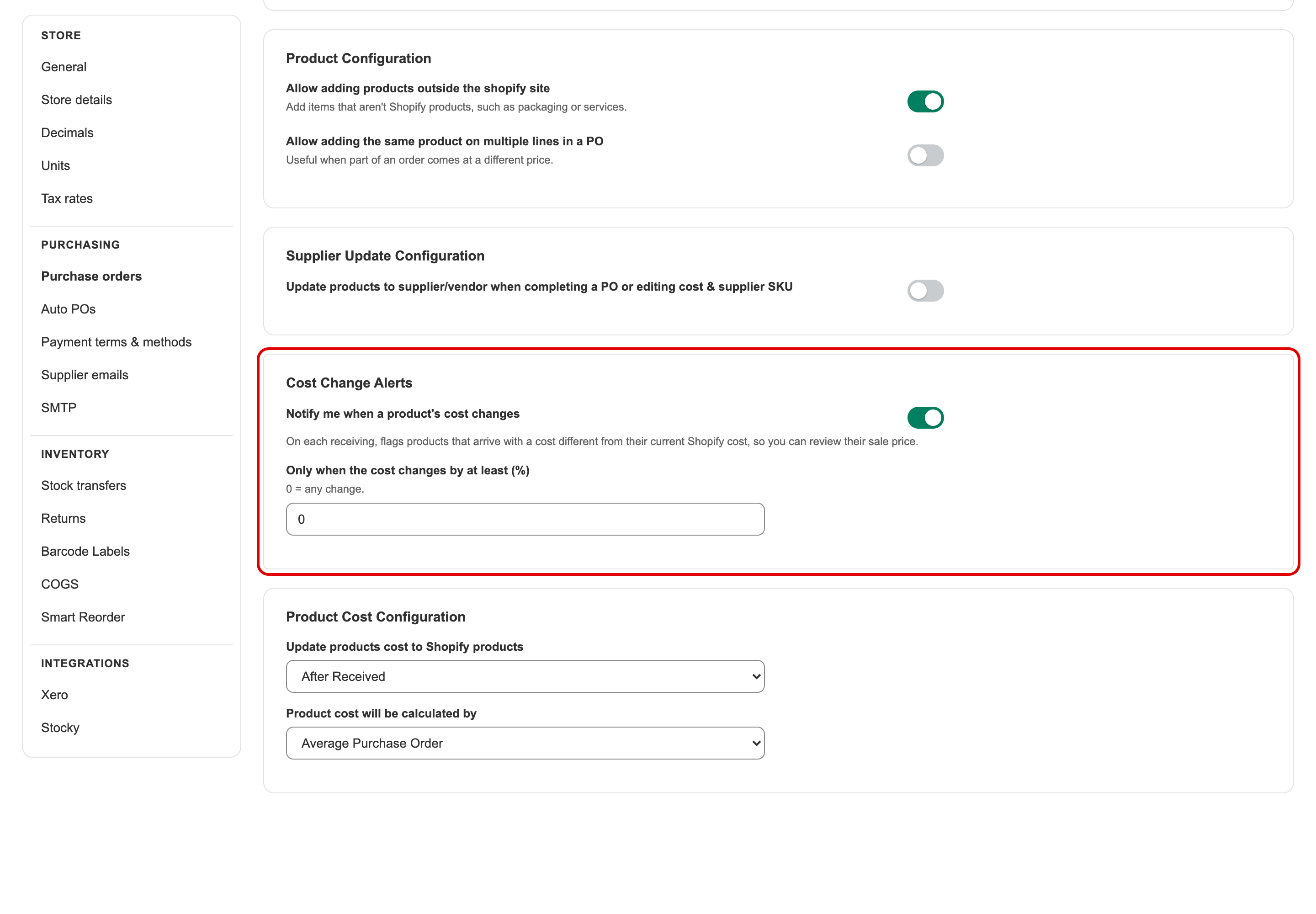
- Go to Settings > Purchase orders.
- In Cost Change Alerts, turn on Notify me when a product's cost changes.
- Optional: in Only when the cost changes by at least (%), enter a minimum change, for example
5, to ignore small differences. Leave0to see every change.
Your changes save as soon as you make them.
See which products have a new cost on a purchase order
Open a purchase order. When some products have a cost that's different from their current cost in Shopify:
- A yellow banner above the product list tells you how many products have a new cost. Click Show only these products to list just those products, and Show all products to go back. Click Open Cost changes to see this PO's products in the Cost changes list.
- Under the product's Cost, you see:
- the cost in Shopify and the new cost, with the change in percent: an orange ▲ when the cost goes up, a green ▼ when it goes down;
- the product's current sale price in Shopify, and the margin before and after the new cost;
- for products you've already received, To review or Reviewed.
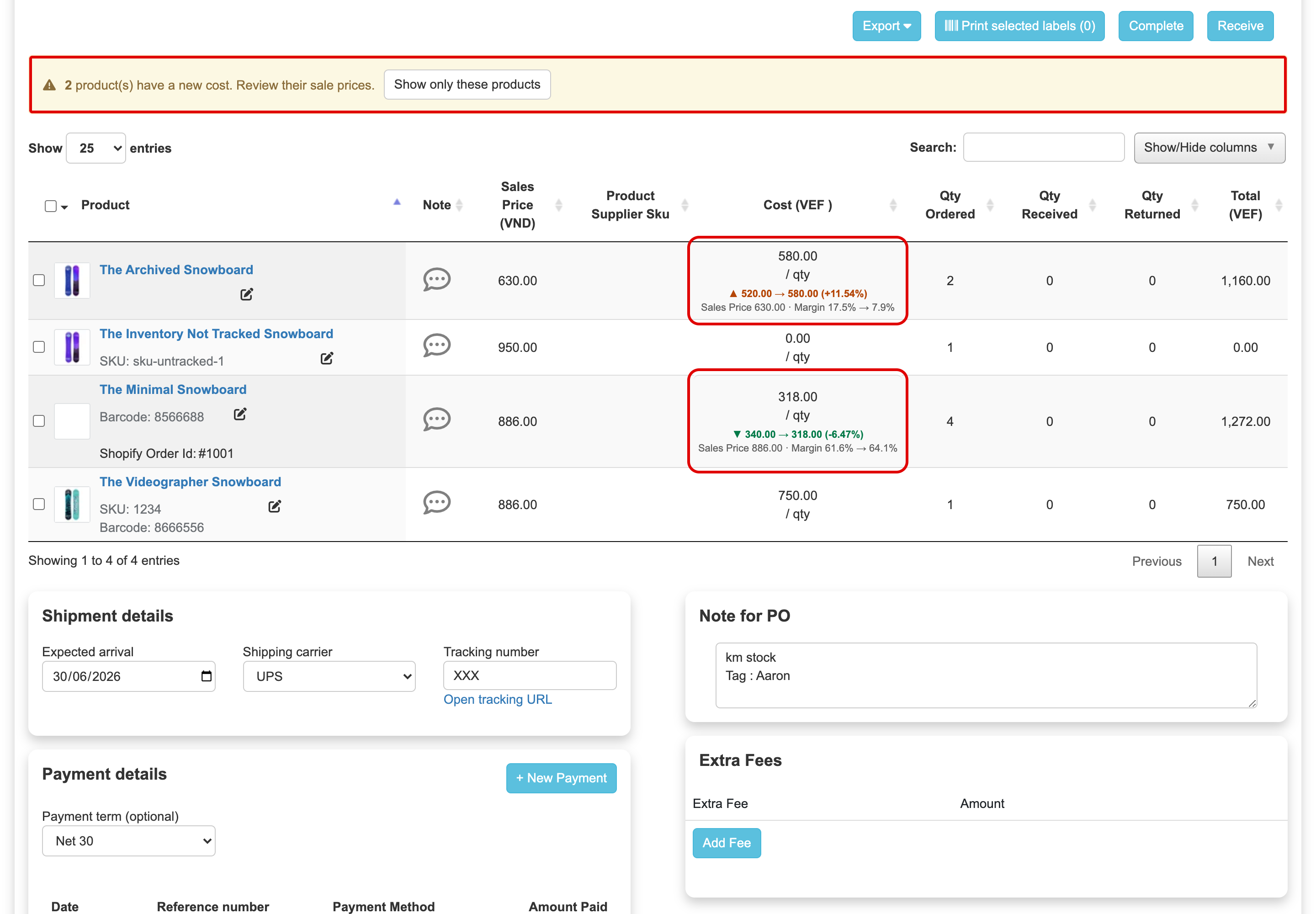
In this example, the first product now costs 580.00 instead of 520.00 (+11.54%). With a sale price of 630.00, the margin drops from 17.5% to 7.9%, so it's worth raising the sale price.
Before you receive a product, the alert compares the cost on the PO with the cost in Shopify. If you change a product's Cost on the PO, the alert updates straight away, and it disappears when the cost matches Shopify again.
Get notified when you receive products with a new cost
Each time you receive products from a PO, the app checks every product you receive. If its new cost is different from its cost in Shopify, the product is added to the Cost changes list as To review. This works however you receive: one by one, Receive all, or by importing a CSV file.
- You get one notification under the bell icon per receiving, for example PO #PO000219: review the sale prices of products received with a new cost. Click it to open the Cost changes list for that PO.
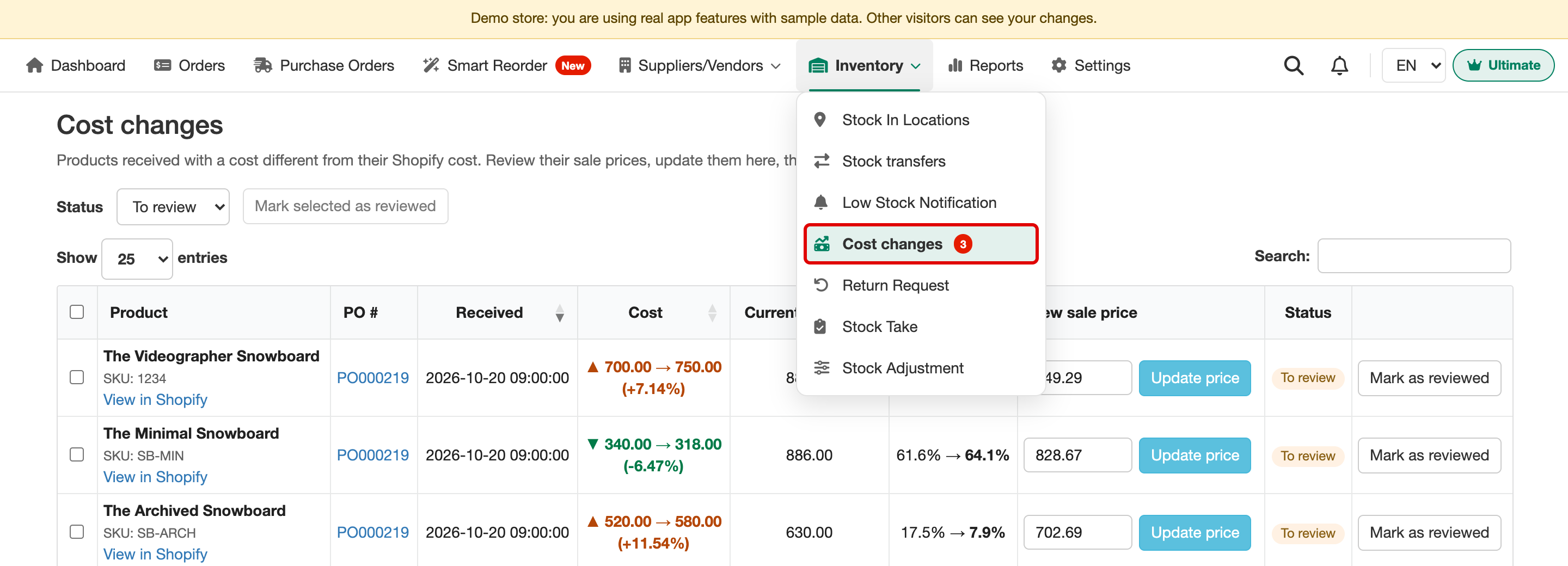
- In the menu, Inventory > Cost changes shows how many products are still to review.
Review cost changes and update sale prices
Go to Inventory > Cost changes.
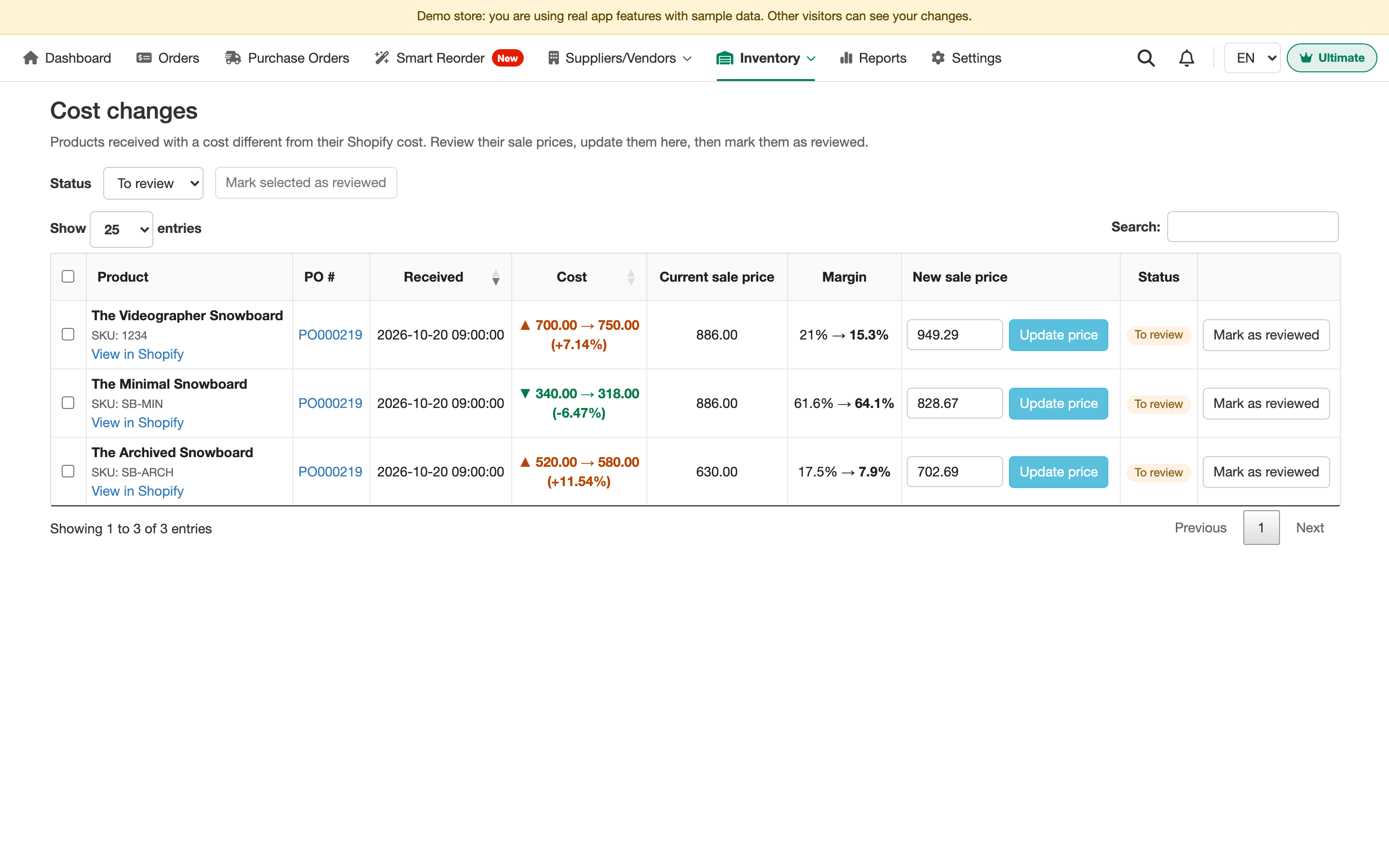
For each product, the list shows the PO it was received on, the date, the old and new cost, the current sale price in Shopify and how the margin changes.
To update a sale price:
- Check the price in New sale price. The app fills in the price that keeps the margin you had before the cost changed. You can type another price.
- Click Update price, then confirm.
The new price is saved to the product in Shopify straight away, and the product moves to Reviewed.
If the sale price is fine as it is, click Mark as reviewed. To mark several products at once, tick them and click Mark selected as reviewed.
Use Status to switch between To review, Reviewed and All, and Search to find a product by name, SKU or PO number.
Good to know
- A product is added to the list only once for the same new cost, even if you receive it in several deliveries.
- The new cost is the cost the app writes to Shopify when you receive the product. If you calculate cost with Average Purchase Order in Settings > Purchase orders > Product Cost Configuration, that's the new average cost.
- For a PO in another currency, the PO cost is converted with the PO's exchange rate before it's compared with the Shopify cost.
- Products that have no cost in Shopify yet aren't flagged, because there's nothing to compare with.
- The Shopify cost and sale price come from the product data the app keeps in sync with Shopify. If you just changed them in Shopify, give the sync a few minutes.
- If you turn cost change alerts off, products you receive are no longer checked, and the list and menu item are hidden.